You hit print, and instead of paper coming out, your computer flashes an "HP printer offline" message. It's especially confusing when the printer is sitting right in front of you, powered on, with the display screen showing nothing wrong at all.
That mismatch is the clue. When HP printers go offline, it's rarely a hardware failure. It's almost always your computer losing track of a working printer, caused by an outdated driver, a dropped Wi-Fi connection, a jammed print queue, or a setting that's telling Windows or macOS to treat the printer as unavailable. HP publishes its own tools for exactly this problem, and the fixes below walk through them in the order that resolves the issue fastest.
Causes of the Offline Error
HP's own support documentation points to five recurring causes:
- An outdated or corrupted driver. This is the single most common cause on machines that haven't updated their printer software recently.
- A dropped Wi-Fi or USB connection. Wireless printers are especially prone to losing their saved network after a router restart or password change.
- Incorrect printer settings. "Use Printer Offline" mode can get switched on by accident, or your HP printer may no longer be set as the default device.
- A backed-up print queue. One job that failed to send can lock up everything queued behind it.
- A stalled print spooler service. This is the background Windows service that manages every print job, and when it hangs, printers often report offline even though they're connected fine.
Solutions to Fix an HP Printer Offline Error
Solution 1: Run HP Print and Scan Doctor
Before touching any Windows settings, try HP's own diagnostic tool. It's free, made specifically for this problem, and often fixes the offline error automatically.
- Download HP Print and Scan Doctor from HP's official support site
- Open HPPSdr.exe from your downloads folder
- Click Start, then select your HP printer from the list (if it doesn't appear, turn the printer on and click Retry)
- Let the tool scan and apply its recommended fix
Solution 2: Turn Off "Use Printer Offline" Mode
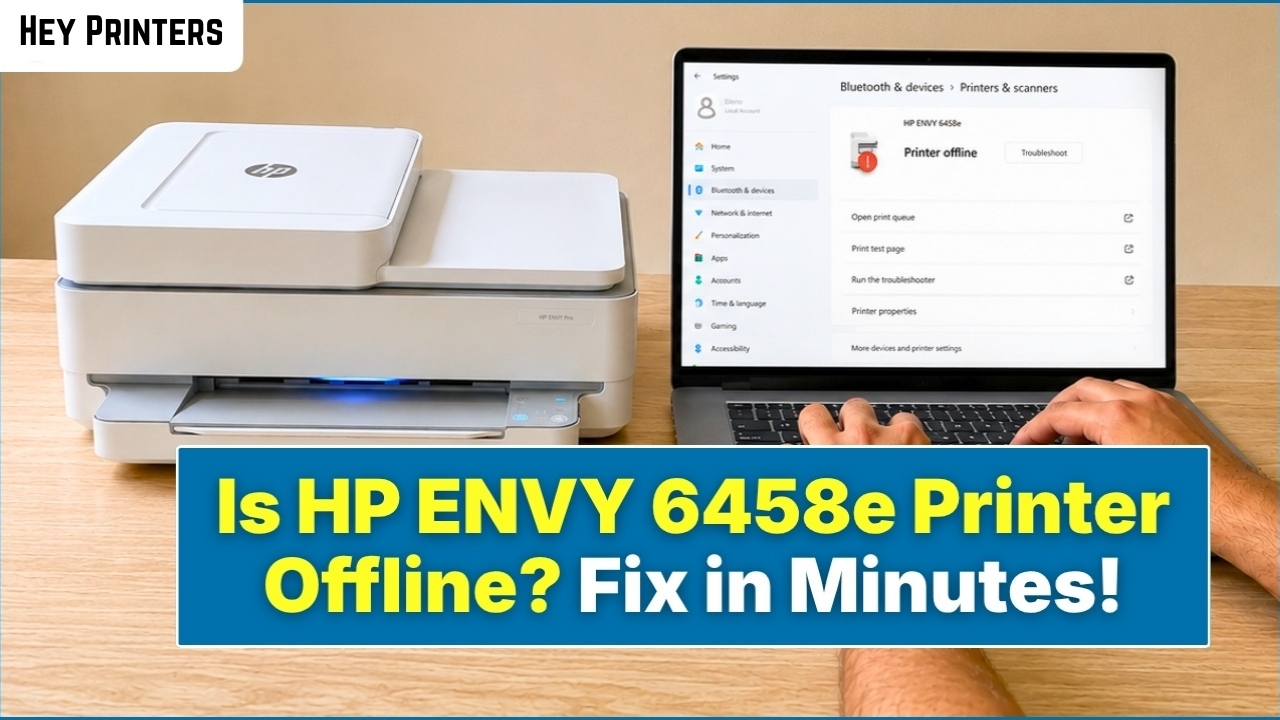
- Open Settings > Bluetooth & devices > Printers & scanners
- Select your HP printer and choose Open print queue
- Click the Printer menu in the queue window
- Uncheck Use Printer Offline if it's checked
- Send a test print
Solution 3: Set Your HP Printer as the Default Device
On Windows 11, go to Settings > Bluetooth & devices > Printers & scanners, select your HP printer, and click Set as default.
On Windows 10, open Settings > Devices > Printers & scanners, turn off Let Windows manage my default printer, then select your HP printer and click Set as default.
Solution 4: Restart the Print Spooler Service
- Press the Windows key, type services, and open the Services app
- Find Print Spooler, right-click it, and choose Restart (or Start if it's stopped)
- If your printer connects through a WSD port, also check that Function Discovery Provider Host and Function Discovery Resource Publication are set to Automatic
Solution 5: Reconnect the Printer to Your Network
- Restart the printer, your router, and your computer, in that order, waiting about 30 seconds between each
- Open the HP Smart app and use its wireless setup or Diagnose & Fix option to reconnect the printer
- From the printer's own control panel, print a wireless network test report to confirm it has a valid connection
- For USB-connected printers, try a different cable or port before assuming it's a network issue
Solution 6: Remove and Re-Add the Printer on Mac
- Open System Settings > Printers & Scanners
- Select your HP printer and click the minus (-) button to remove it
- Click the plus (+) button, select your HP printer, and confirm the connection type is set to AirPrint
For network printers that still won't connect, add it again using the IP tab instead, entering the printer's IP address with the protocol set to HP Jetdirect – Socket