

Clearing a Paper Jam on an Canon Printer Without Damage


A paper jam on a Canon printer is almost always a five-minute fix at your desk, and you rarely need any tools. The trick is knowing where the sheet is actually stuck and pulling it the right way so no scraps stay behind to trigger the error again.

This guide covers every jam location on Canon inkjet and PIXMA printers, what to do when the screen reports a jam but you can't find any paper, what the support codes mean, and how to stop jams from coming back.

Why Canon Printers Jam

Most jams come down to one of these:

  • Paper loaded unevenly or past the fill line. An overfilled tray or a skewed stack feeds crooked and catches.
  • Damp, curled, wrinkled, or previously printed paper. Sheets that aren't flat and dry don't feed cleanly.
  • Dust or dried ink on the feed rollers. Dirty rollers grip unevenly and pull one edge of the sheet faster than the other.
  • A foreign object in the paper path. A paper clip, staple, coin, or a torn scrap from an earlier jam is a common hidden cause.
  • The wrong paper size or type in the print settings, so the printer expects a different sheet than the one loaded.
  • A worn roller or transport part on an older printer, which usually needs service.

Before You Pull Anything Out


FAQs

Why does my document keep jamming in the Canon printer device?

Sometimes the users get stuck with the paper jamming issue, and they do not know the exact solution to solving this problem. Firstly, you have to inspect that the paper feeder rollers in the printer device are clean. If they are not, the document feed may be uneven, and jams may happen. If the given instructions do not match the printer, consult the printer's user guide.

To solve the paper jam in the Canon device, you just have to follow all the given below steps as it is mentioned:

  • First of all, switch off the printer and disconnect wires from the machine.
  • Now, retract the document output tray of the printer and turn on the device cover.
  • And inspect that the jammed sheet is under the machine ink cartridge holder.
  • Next, grasp the jammed sheet carefully from the machine using both hands.
  • And slowly take out the jammed paper from the machine so as not to tear it.
  • Ensure that the jammed sheet is now removed from the device.
  • Lastly, shut off the machine cover.

Latest Blogs

  • Aug 31, 2026
  • By Drake Shawn
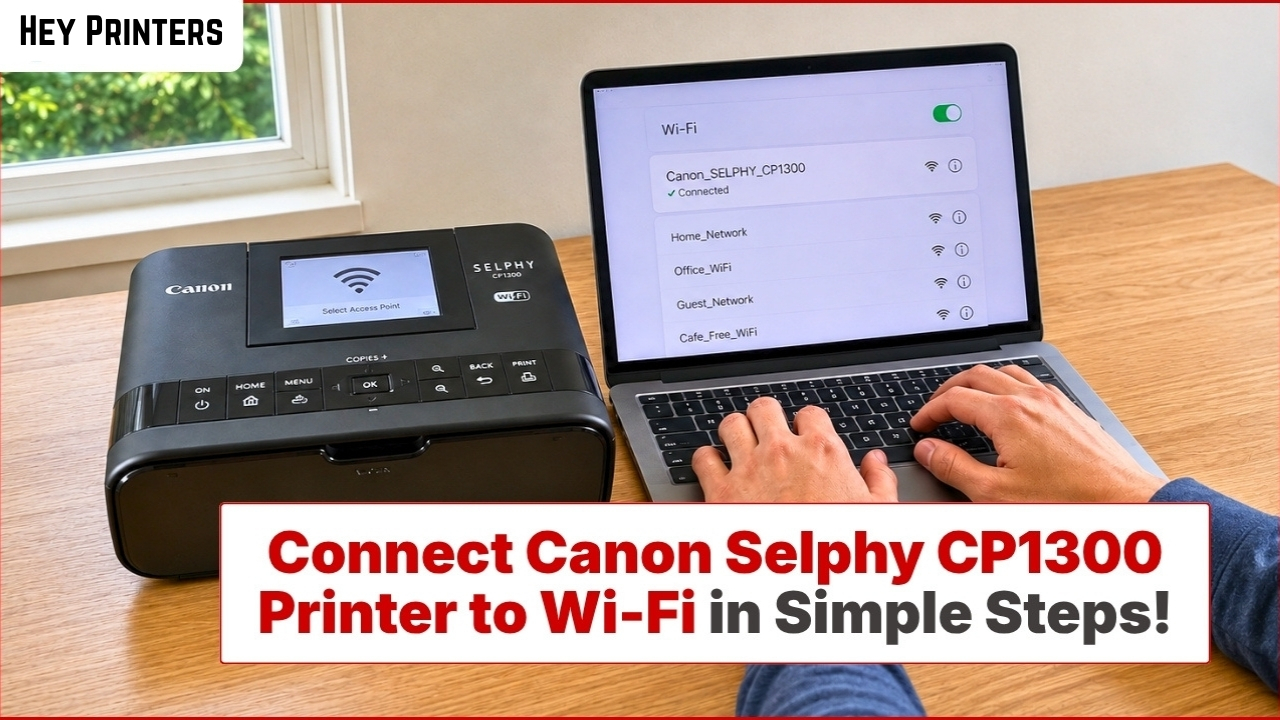
How to Connect Canon Selphy CP1300 Printer to WiFi?

In this video, you’ll learn how to connect Canon Selphy CP1300 Printer to a Wi-Fi network. You’ll also learn how to ....

Read More
  • Aug 21, 2026
  • By Drake Shawn
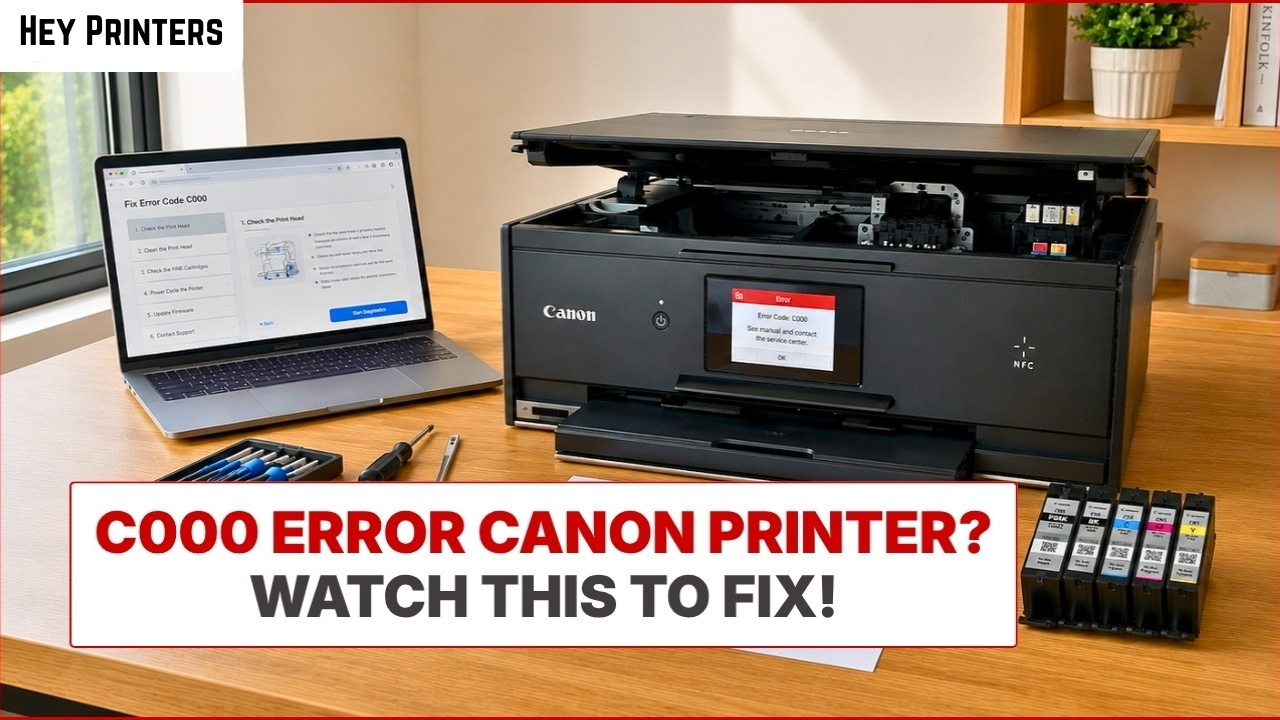
How to Fix C000 Error Canon Printer? | Hey Printers

Seeing a C000 error on your Canon printer? This video shows the simple steps to fix it. Learn how to check the printer, ....

Read More
  • Aug 17, 2026
  • By Drake Shawn
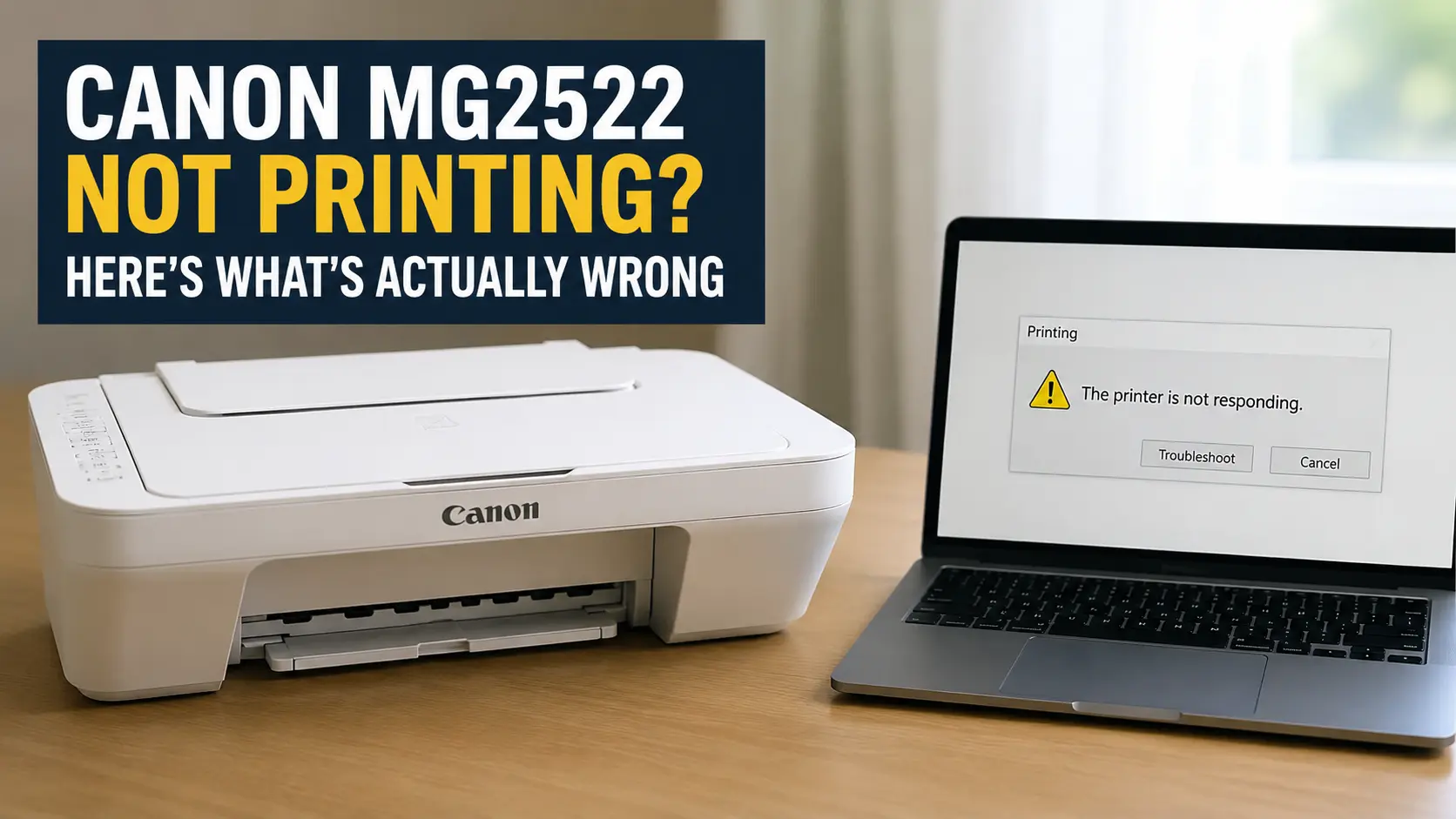
Canon MG2522 Not Printing? Here's What's Actually Wrong

Nine times out of ten, a Canon MG2522 that won't print is failing for one of two unglamorous reasons: your computer no l....

Read More
  • Aug 05, 2026
  • By Mathew Jones
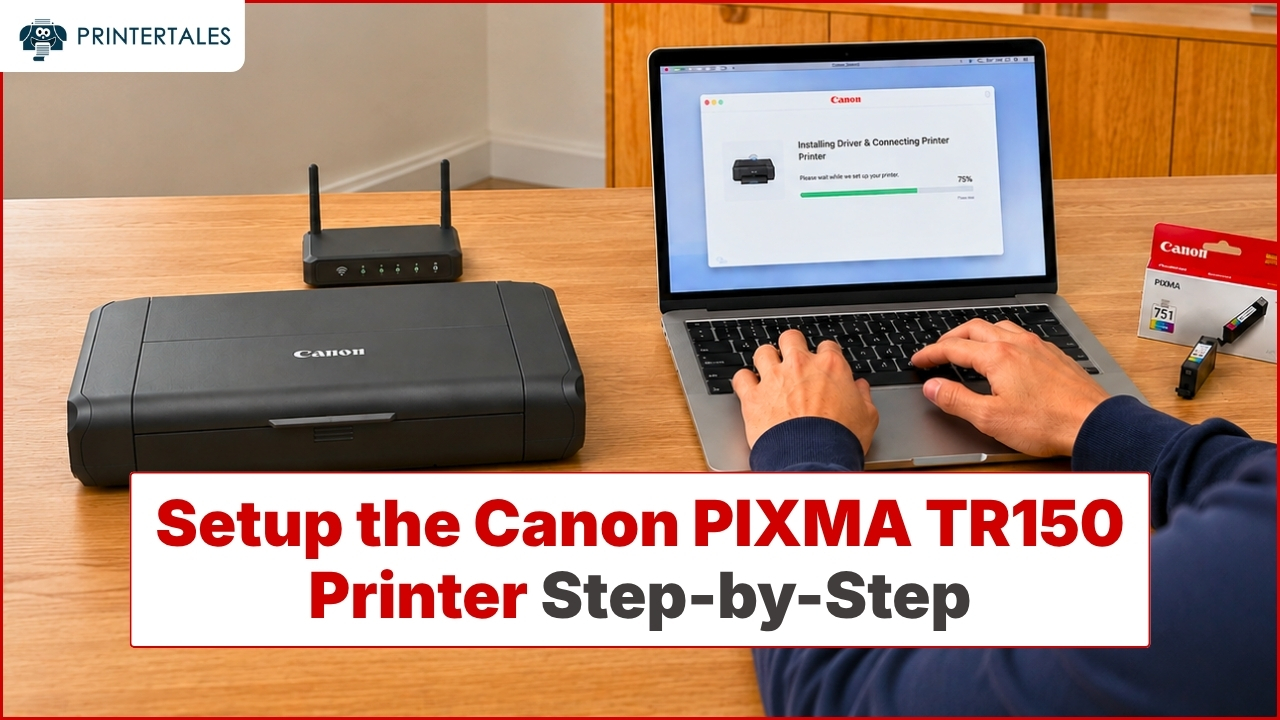
How to Setup the Canon PIXMA TR150 Printer?

Learn how to setup the Canon PIXMA TR150 printer in this step-by-step video tutorial. You’ll learn how to use your pri....

Read More
  • Aug 03, 2026
  • By Drake Shawn
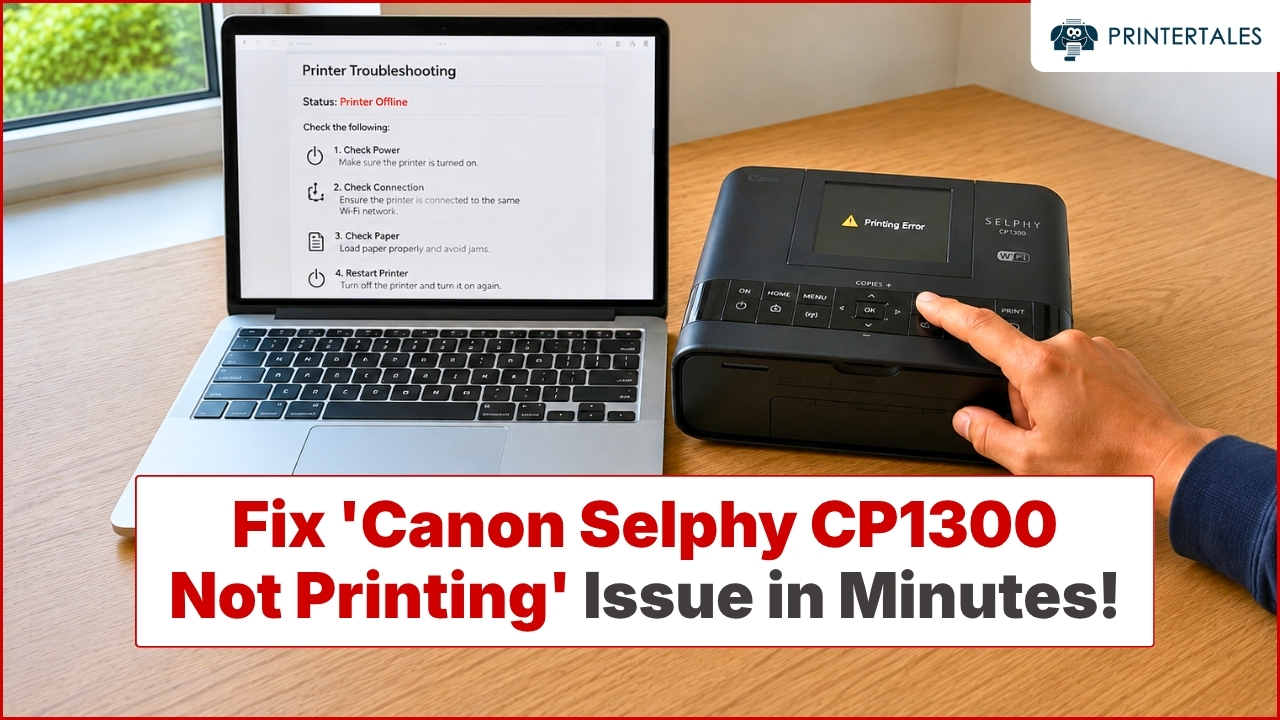
Fix Canon Selphy CP1300 Not Printing Issue

Get your Canon SELPHY CP1300 printer back to work with this step-by-step video. We cover 3 simple methods to fix the not....

Read More
  • Jul 31, 2026
  • By Drake Shawn
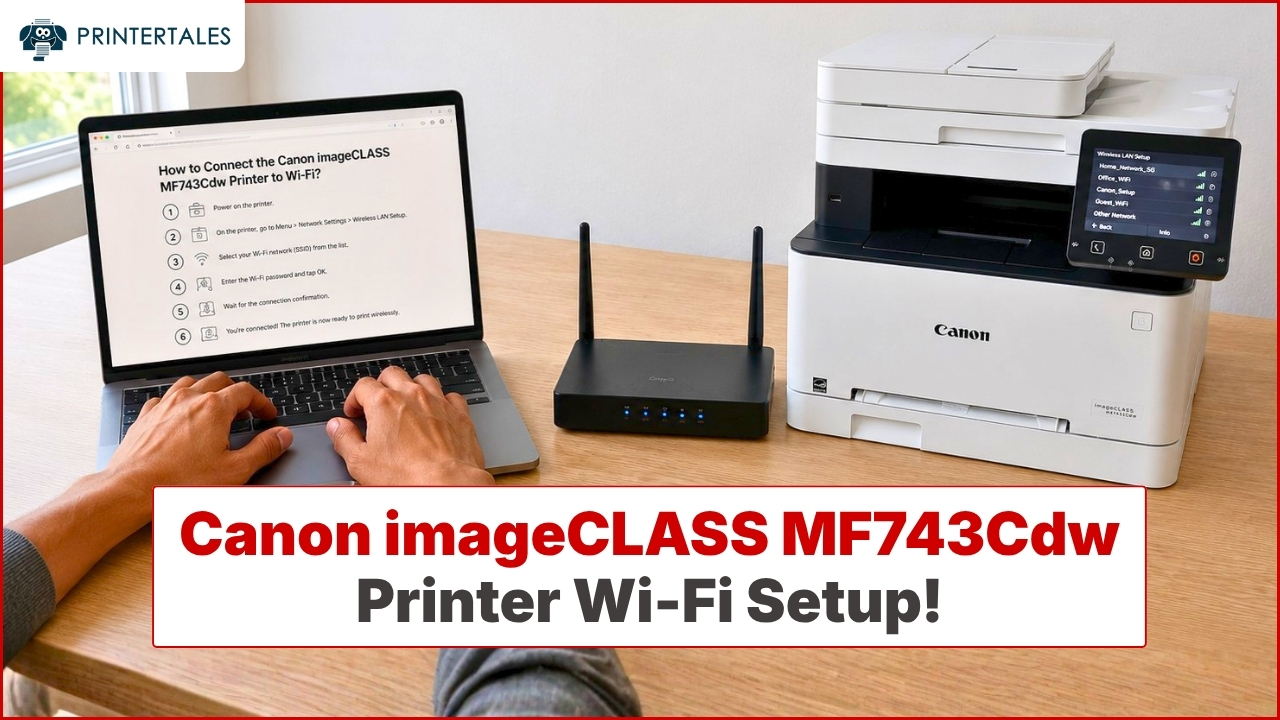
How to Connect Canon imageCLASS MF743Cdw Printer to Wi-Fi?

Connect your Canon imageCLASS MF743Cdw printer to Wi-Fi with this step-by-step video. Follow the simple setup process to....

Read More
4.6/5

533 Votes

Rate Us!

4.6/5   533 - votes.

Cookie Consent

We use cookies to give you the best possible experience on our website. Cookie Policy